
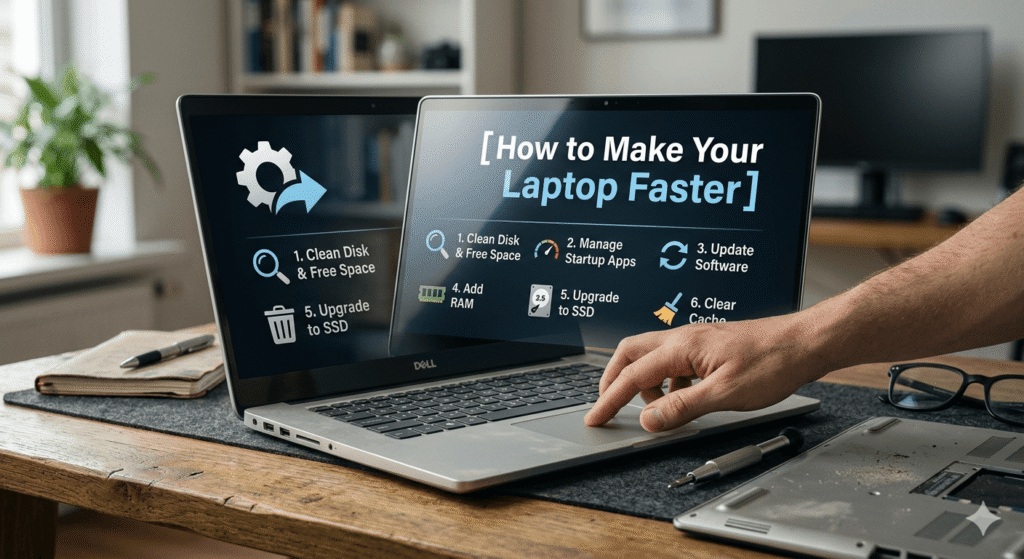
Does it look like your laptop is stuck in mud? You are not alone. At some point, most users experience slow boot times. A slow computer disturbs your work and leads to great frustration. It takes an eternity to wait until a just folder opens. You might think you need a brand-new, expensive machine today. That is often a very costly and unnecessary mistake to make. Most laptops just need a deep and thorough digital cleaning.
Optimization can restore that “out of the box” feeling quickly. This guide offers proven steps to boost your system performance. We will explore simple software tweaks and vital hardware upgrades. You will learn to identify hidden resource hogs and junk. Our goal is to make your technology work for you again. Follow these ten easy steps to reclaim your laptop’s speed. Let’s explore the world of fast mobile computing.
How to Make Your Laptop Faster in 10 Easy Steps
Making a laptop faster requires a consistent and logical approach. You must address both software bloat and physical hardware limitations. Start by auditing your current digital environment for hidden waste. Clear out all those files that you have not opened in years. Optimize your preferences to favor raw performance rather than flashy displays. Make sure your cooling system is free of thick household dust. Even tiny modifications provide massive speed benefits overall. You must not be a genius to perform.
Why Your Laptop Becomes Slow Over Time
A laptop does not simply slow down without any apparent reason. Each app you download is a little additional weight. Over time, this weight becomes a heavy burden for processors. Background processes multiply without you ever realising they are running. Web browsers collect massive amounts of data in their caches. This data eventually fragments across your entire storage drive. Hard drives with moving parts wear out after years of use.
Even solid-state drives lose efficiency as they reach full capacity. Operating systems become more complex with every new annual update. Modern software requires more memory than older versions did. Heat is also a silent killer of high-speed performance. Dust blocks the fans and throttles the CPU. Your computer slows down to avoid burning itself. This protective measure feels like a glitch. Understanding these causes is the first step toward a fix.
Signs That Your Laptop Needs Optimization
How do you know when it is time to optimize? The most obvious sign is a very long boot process. If you can make coffee while it starts, it’s slow. Frequent “Not Responding” messages are another clear and urgent signal. You might hear your fan spinning loudly for simple tasks. This means the processor is working too hard for nothing. Your laptop might feel hot to the touch on bottom.
Applications may take several seconds just to show a window. The cursor might stutter or lag across the screen surface. You notice that the battery dies much faster than before. Low disk space warnings are a cry for immediate help. If your laptop freezes during basic typing, it is struggling. These symptoms indicate a system that is buried in junk.
Simple Ways to Speed Up Your Laptop
You may begin speeding up your laptop right now.
- First, check the Control Panel to confirm your current power plan. Switch to High Performance mode and disable Battery Saver. This enables the CPU to perform optimally.
- Then, shut down any tabs in the browser that you are not using. Every open tab takes up some of the free RAM you have.
- Restart your laptop at least once every single day now. This clears out the temporary memory and stops ghost processes. You should also clear your desktop of too many icons. Windows must load every icon during the initial startup phase.
- Turn off the transparency effects in your personalization settings menu. These visual flairs look nice, but drain your graphics power. Use a flat, hard surface to keep the vents clear. Using a laptop on a bed leads to instant overheating.
Remove Unnecessary Startup Programs
Too many programs want to start the moment you log in. They fight for CPU attention before you even open Chrome.
- Press Ctrl + Shift + Esc to open your Task Manager.
- To display the entire list, press the “Startup” tab. You will see many apps you rarely ever use there.
- Look for apps with a “High” impact on startup.
- Right-click on them and select the “Disable” option immediately.
This does not delete the app from your laptop storage. It simply prevents it from running without your direct permission. Common culprits include Spotify, Steam, and various cloud storage syncs. Only keep essential drivers and security software enabled for boot. In this approach, your laptop will access the desktop much more quickly. Each time you install new software, go over this list.
Delete Temporary and Junk Files
Your laptop is likely filled with thousands of useless files. Windows creates temporary data for every task it ever performs. These files are supposed to be deleted but often stay. Over several months, they can take up gigabytes of important space. To quickly locate them, use the integrated “Disk Cleanup” tool. Let the tool scan your whole C drive after selecting it.
Check the boxes for temporary files and the recycle bin. Do not forget to clear out your “Downloads” folder too. Many people keep large installers there for no good reason. You can also use “Storage Sense” in the Windows settings. This feature deletes old files automatically to save you time. A clean drive allows the operating system to breathe properly. It makes searching for important documents much faster for you.
Update Your Operating System
Software developers constantly release updates to improve system code efficiency. These updates fix bugs that might be slowing you down. They also provide the latest drivers for your specific hardware. An outdated system is often a very slow and vulnerable system. Go to your settings and check for Windows Updates now.
Install every recommended patch and restart your machine as required. Sometimes, a single update can fix a major memory leak. Updates also optimize how the laptop manages its power usage. If your drivers are old, your hardware cannot communicate well. Lag, crashes, and really subpar performance are the results of this.
Upgrade RAM or SSD
Sometimes software tweaks are not enough for an old laptop. You might need to improve the physical parts inside it.
The most affordable means of increasing speed is to add more RAM. With 4GB of RAM, you require 8GB or more. This enables you to execute numerous applications simultaneously. The most significant change, though, is the Solid State Drive.
In case your laptop has an old HDD, then replace it today. Hard Disk Drives use slow spinning platters to read data. SSDs use flash memory and are ten times faster typically. An SSD will make your laptop feel like a rocket. It will boot in seconds instead of long, painful minutes.
Applications will launch almost instantly after you click the icon. This is the single best investment for any slow laptop. Most laptops allow you to swap these parts very easily.
Best Free Tools to Improve Laptop Performance
You do not have to spend money on fancy software. Many free tools do an amazing job of cleaning systems.
- CCleaner is a classic choice for removing deep system junk. It cleans your registry and deletes stubborn browser tracking cookies.
- Malwarebytes is essential for finding hidden viruses and malicious software. Malware can secretly use your CPU to mine digital currency. Removing it will instantly restore your laptop’s natural processing speed.
- BleachBit is a great open-source alternative for heavy-duty cleaning. It shreds files to ensure they are gone for good.
- HWMonitor helps you track the temperature of your internal components. If your CPU is too hot, you know to clean the fans.
- TreeSize Free shows you exactly which folders are taking up space.
Common Mistakes That Slow Down Your Laptop
Avoid the “PC Booster” apps you see in web ads. Most of these are “bloatware” that actually slow you down. They stay in the RAM and nag you with pop-ups. Another mistake is running two different antivirus programs at once. They will conflict and freeze your entire system very often. Never use your laptop on soft surfaces like thick blankets. This block the intake vents and causes immediate thermal throttling.
Do not let your storage drive get completely full ever. A full drive cannot move files around for basic tasks. Always keep at least twenty percent of your drive empty. Skipping restarts for weeks is also a very bad habit. It allows tiny errors to build up in the memory. Do not ignore the dust building up in the side ports. Blow it out with a can of compressed air. Handling your laptop with care avoids these traps of speed.
Frequently Asked Questions
Why does my laptop become slow over time?
It occurs due to junk files, software built up in the background and insufficient storage that can hardly deal with new updates.
What are the easiest ways to speed up a slow laptop?
The easiest solutions are to restart daily, leave browser tabs unopened, and shut off applications that open automatically after a reboot.
Does deleting temporary files improve laptop performance?
Yes, it frees up space and makes your operating system more efficient in locating important data a lot quicker.
How much RAM is needed for a fast laptop?
Although 8GB is currently the standard for smooth working, 16GB is perfect in case you love heavy multi-tasking or playing games.
Will upgrading to an SSD make my laptop faster?
Absolutely, upgrading to SSD is the best hardware upgrade that makes any faster.
How can I remove unnecessary startup programs?
Open your Task Manager, go to the Startup tab, and switch off high-impact programs that you do not require now.
What software can help improve laptop speed?
Primary options like CCleaner to clean junk and Malwarebytes to clean resource-consuming viruses are great options since they are trusted and free.
Is resetting my laptop a good way to fix slow performance?
Certainly’ it is an excellent way to fix slow performance.
How often should I clean junk files from my laptop?
Running a quick digital cleanup once a month is usually enough to keep your system lean and responsive.
What are common mistakes that slow down laptops?
Common traps include running multiple antivirus programs, blocking cooling vents, and letting your storage drive get 100% full.